AI Haven
AI Tools

AI Footjob Image and Video Tools

An AI footjob falls apart when the crop cuts off the ankle or the toes warp during the stroke. Check the still at full size, then see if the foot keeps its shape in the clip.

12 tools found

Top 3 at a Glance

MyBabes AI

Token-based video

Best for: Testing motion from a chosen still

MyBabes documents a footjob video workflow that starts with a gallery still. In V2, animate it into a 3 to 15 second clip at 480p or 720p. Check the token cost for your settings before retrying.

Video preview
  • Frame the still with the Footjob LoRA
  • Check ankle motion in a 3-second test
  • Inspect toe detail in the 720p render
Main upside
Inspect the ankle, toes and framing before you pay to animate the still.
Main caution
V2 has no separate negative prompt field. Longer clips can use more tokens.
Joi AI

Free + paid

Best for: Comparing stills before choosing a frame

Joi’s footjob image tool starts with a base character, orientation and negative prompt. Run a batch and compare the crops before picking a frame. Its Video tab opens the general video generator.

Video preview
  • Pick one character to test foot angles
  • Flag extra toes in the negative prompt
  • Batch several stills to compare crops
Main upside
Compare stills side by side before picking which framing to keep.
Main caution
The topic page documents image controls. Video opens a separate tool.

BetterWaifu

Free + paid

Best for: Anime-style framing and crop choices

BetterWaifu’s footjob image tool lets you pick the model and aspect ratio. Compare close and wide illustrated takes at full size. The topic page documents the still-image workflow.

Video preview
  • Use NoobAI-XL for illustrated foot art
  • Pick a wider ratio to fit both feet
  • Upscale 2× to check individual toes
Main upside
Change the frame before committing to a final illustration.
Main caution
The documented topic workflow covers images. Check other modes separately.

Editor's shortlist

Get the Crop Right Before She Strokes

Start with a still you can judge at full size. A tight crop shows the stroke, though it can hide where the foot meets the leg. Leave the ankle and the line of the knee in frame, then zoom in on the toes. If the tool accepts a reference, use a still you already like and keep a copy so you can see exactly what changes after you animate that angle.

  • Leave the ankle in the first crop, so you can see the foot connect to the leg before she strokes.
  • Check each foot at full size for toe count, ankle shape, and the edges where skin overlaps in the shot.
  • Start each video test from the same approved still, so you can trace any change back to a single frame.
  • Pause the clip at the start, middle, and end to see if the foot keeps its shape through the stroke.
  • Price the still, the first animation, and two retries before you pay to render a longer version.

Keep the first clip short and the camera steady. Pause at the start, middle, and end. See whether the feet hold their shape through the stroke and whether the edges stay clear when they cross. Replay at normal speed to catch a sudden jump between frames that a pause can hide. Price a usable clip, including the retries, before you pay for a longer one.

Approve the Foot Before You Animate

Open the still at full size. Check the ankle, toes, and line of the stroke before you spend on motion.

AI Haven Pick

Create Your AI Dream Companion

Create a fictional companion for text, voice and generated media. Account access, paid features and DreamCoin costs vary by activity.

Try OurDream AI

Compare 5 Options

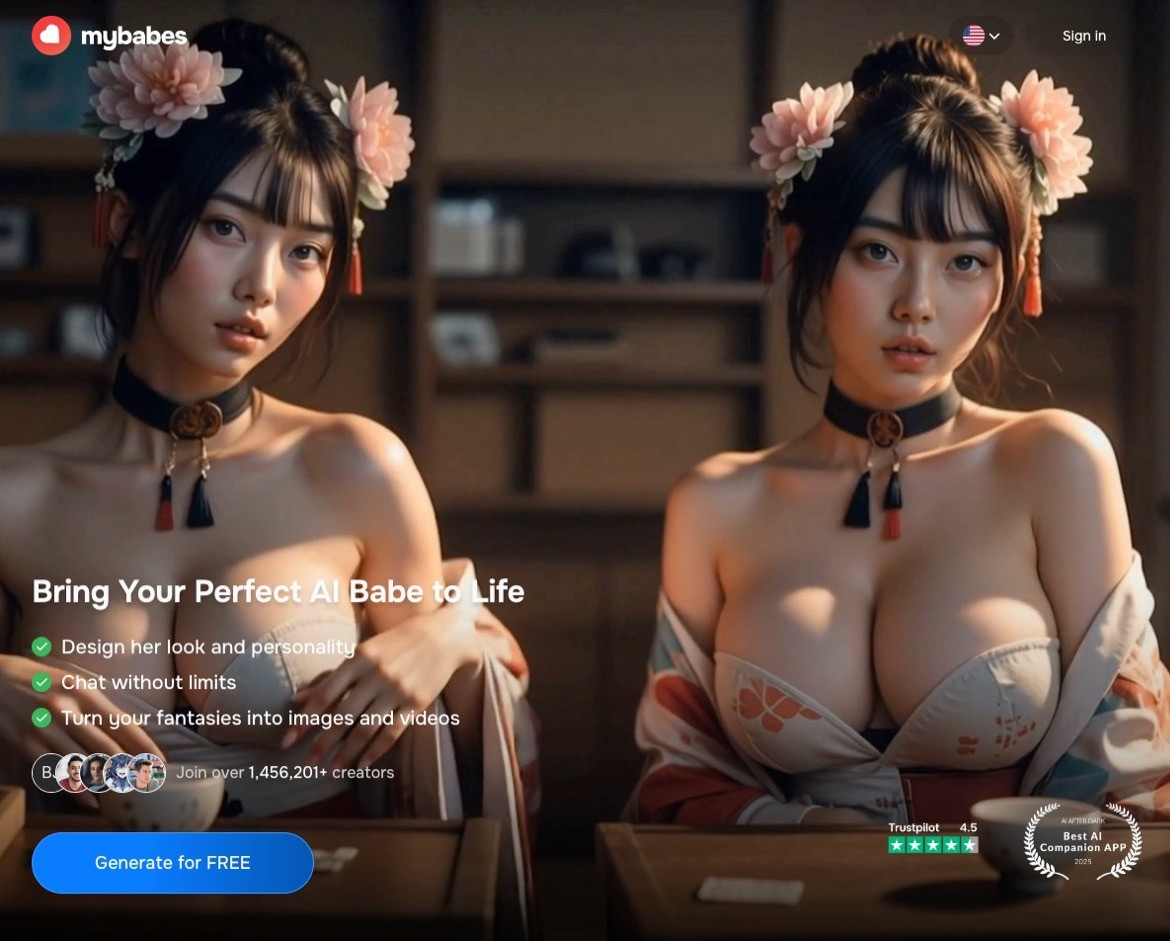
MyBabes AI homepage showing two fictional companions, character creation benefits, and a Generate for Free button
#1

MyBabes AI

Pricing: Token cost varies by clip settings

  • Inspect toes and ankle in your gallery still before animating the frame in V2.
  • V2 supports 3 to 15 second clips at 480p or 720p, depending on your settings.
  • Check the token cost by model, length and resolution before retrying the clip.
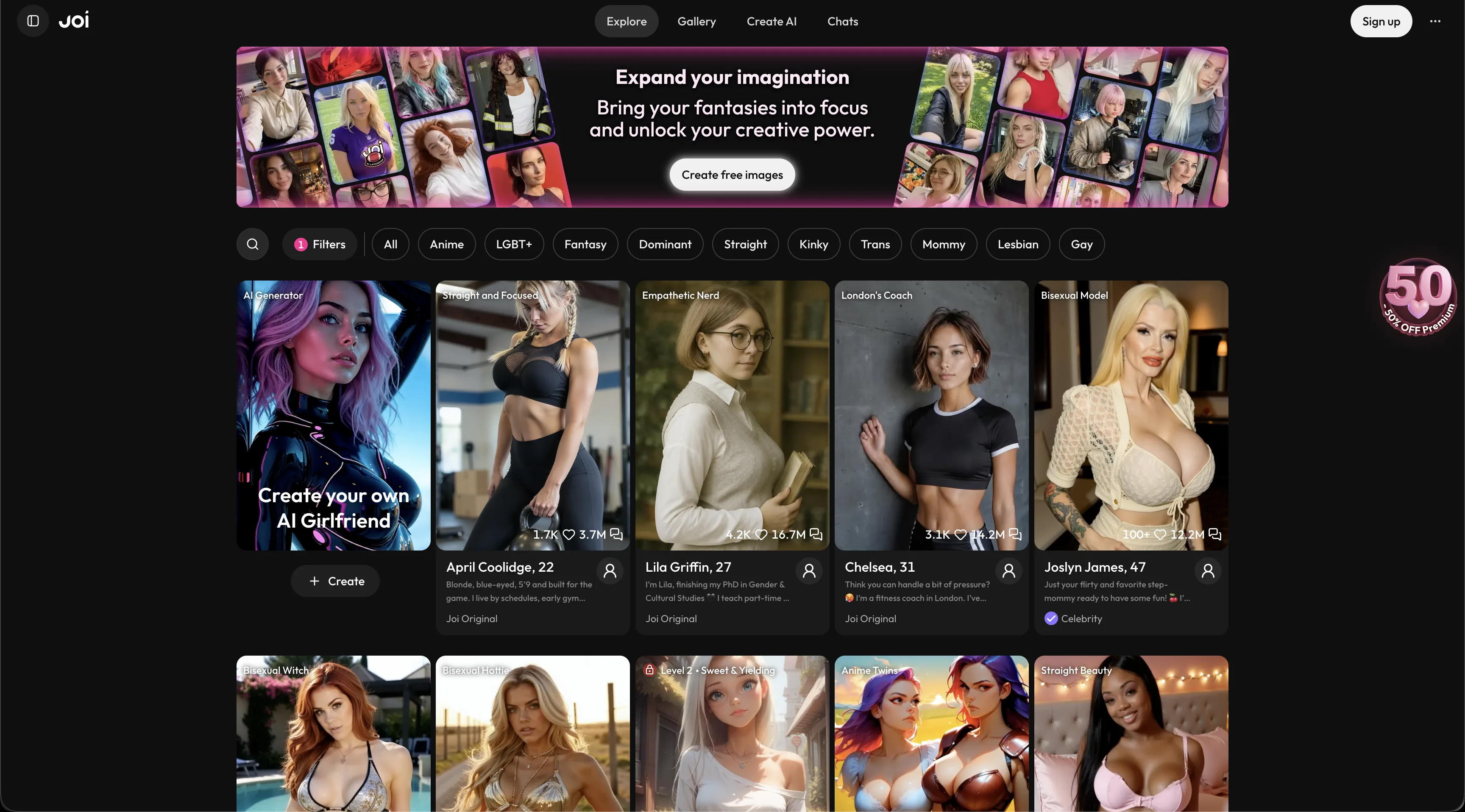
Joi AI Explore page showing its image generator, realistic and anime companion cards, gallery, and Create AI navigation
#2

Joi AI

Pricing: Limited free image generations

  • Pick a base character and use the negative prompt to flag details you want out.
  • Set the orientation, then compare a batch of stills and pick the cleanest crop.
  • Video opens a separate tool. The image page shows an upgrade at the free limit.
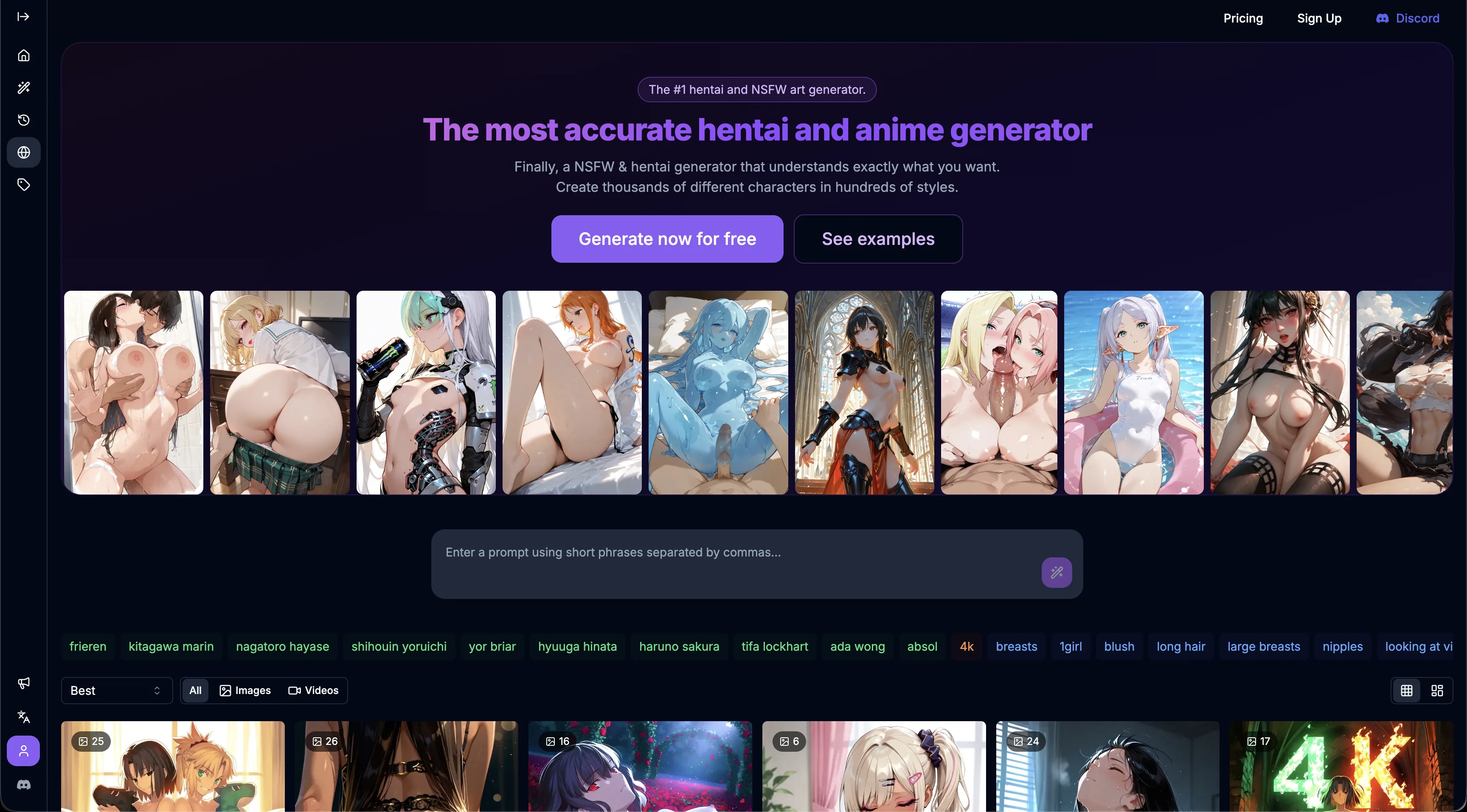
BetterWaifu anime generator home screen with a prompt bar, style tags and generated art gallery
#3

BetterWaifu

Pricing: Free image access and paid options

  • Pick an image model and aspect ratio for an illustrated still before generating.
  • Open the illustrated takes at full size to compare the close and the wide crops.
  • The dedicated path covers stills. Check any video model on its own page first.
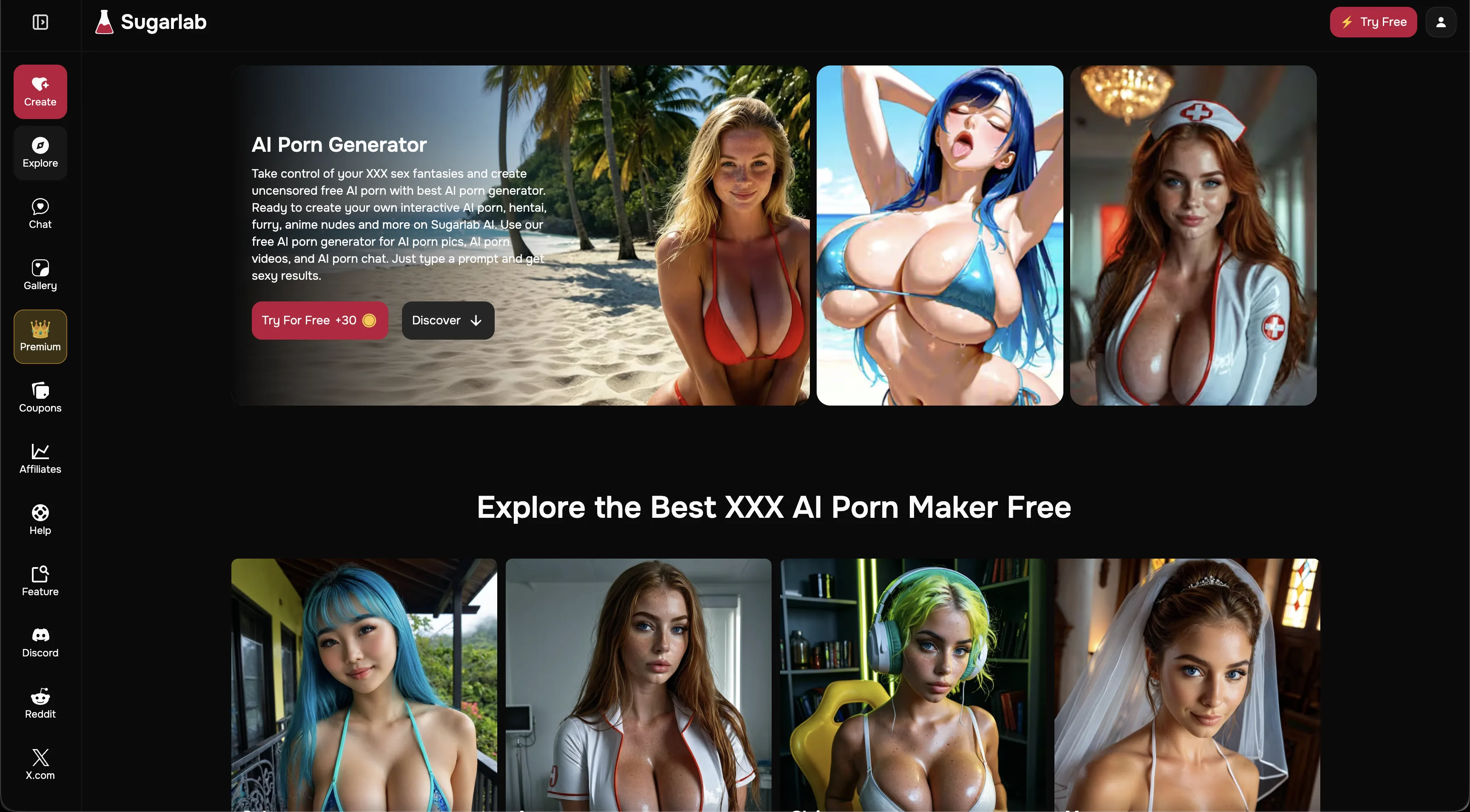
Sugarlab AI homepage with Create, Explore, Chat and Gallery navigation beside realistic and anime adult character examples
#4

Sugarlab AI

Pricing: Check image and video charges

  • Describe the pose and camera angle in the still before you spend credits on motion.
  • Animate your generated still inside Sugarlab AI when the framing looks right.
  • Check the charge for the source image and the clip separately inside the app.
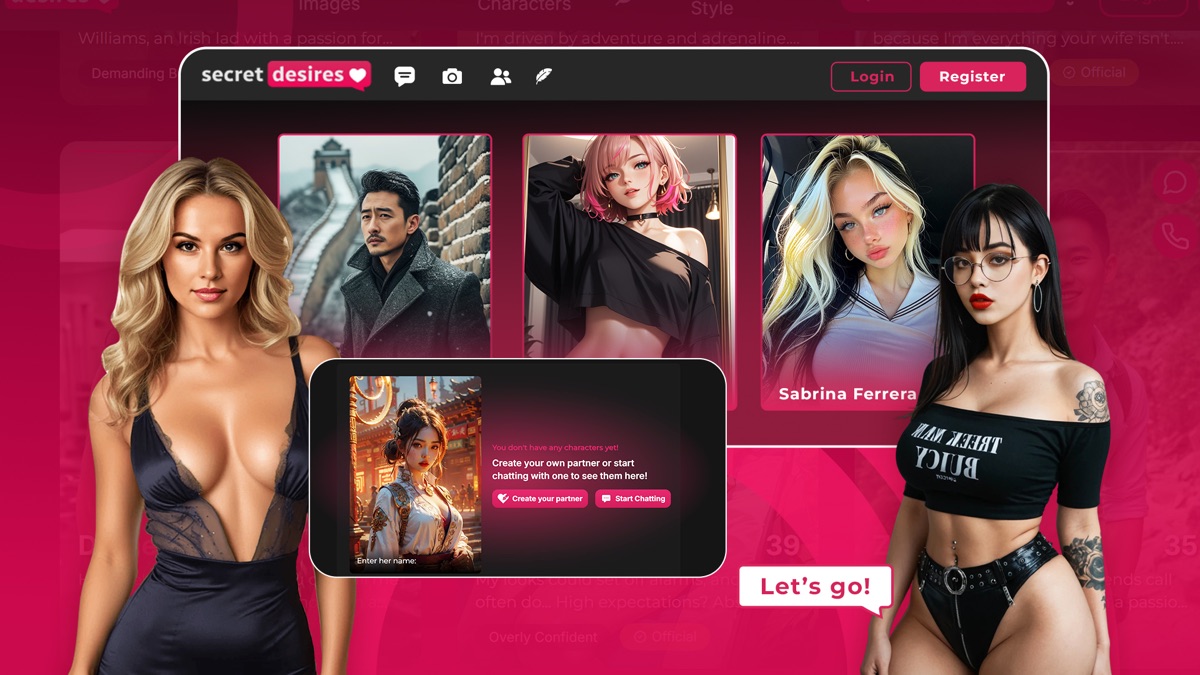
Secret Desires AI screenshot
#5

Secret Desires AI

Pricing: Image requests use Hearts

  • Pick a partner from the footjob roster and ask for a still in the conversation.
  • Describe the angle and pose when you ask, then inspect the still at full size.
  • Images and voice use Hearts. Check what one more image costs before you retry.

All Reviewed Tools

Compare every matching tool in this category.

What to Know Before Choosing

The crop, the toes and whether the stroke holds once the clip starts moving.

Choose Between a Still and a Short Clip

Decide whether you want a still or a clip before you spend. A still lets you count toes and trace the ankle. A short clip shows whether the foot keeps its shape through a stroke or when it crosses the other leg. For motion, pick a tool that accepts the still you already approved.

What you wantWhat to look forWhat to try
A clear close-upFraming or crop controlsCheck that the toes and ankle stay in frame
A local fixA local editor that keeps the cropCheck nearby edges against the original
A short clip with consistent anatomyImage-to-video with a short durationCompare the start, middle, and end at the same zoom
A budget after retriesPrices for stills, clips, and retriesAdd the first usable still, its animation, and two retries

Check the Outline at Full Size

At full size, follow the outline from heel to toe and back into the ankle. A thumbnail can hide a doubled toe or a blurred edge. When part of the foot is hidden, check that the visible edges line up with the angle of the shot.

Try a local edit if the tool lets you keep the crop. Save the original and compare the edges and proportions side by side. For a wider comparison of still tools, see AI image generators for adult scenes.

Watch for Shape Drift Between Frames

Scrub before, during, and after an overlap. Check whether the heel keeps its shape and the ankle still meets the leg. A size change should make sense for the angle. Replay at normal speed to catch a jump a paused frame can hide.

When comparing two tools, use the same still and a similar duration where both allow it. The NSFW video generator comparison covers other workflows. Check the tool’s content support and judge the clip in its preview.

Price the Result After Retries

Add the cost of a usable still, its first animation, and two retries. Check whether length or resolution raises the price and whether each retry costs the full amount again. See how many attempts your plan’s balance covers.

Fix the crop in the still before paying for another clip. Once you have a result you would keep, divide what you spent by the number of usable results to see what each one actually cost.

Frequently Asked Questions

Related Categories

Explore adjacent categories with similar adult AI use cases.