AI Haven
AI Tools

AI Interracial Porn Image and Video Tools

AI interracial porn falls apart when two characters trade faces. Give each fictional adult a place in the frame, then check both faces, skin tones, and outfits before, during, and after the first overlap.

12 tools found

Top 3 at a Glance

FantasyGF.AI

Ultra for paired media

Best for: Selecting two characters in the generator

FantasyGF Ultra gives you a slot for a second female character. Pick both before you make a still or clip, then check whether the model supports the pair and what that render costs in tokens.

Video preview
  • Ultra adds a second saved character
  • Try the pairing in a still before video
  • Budget 500 monthly tokens for retakes
Main upside
Choose the second woman before you make the shared frame.
Main caution
Two-character media needs Ultra. Check the token price for the specific render.

UNDRESS AI

Check Duo credits

Best for: Using two separate character references

Add original fictional adult stills in Person 1 and Person 2 in UNDRESS AI’s Duo editor. Use the optional prompt to pose them together. Sign in to render and check the credit cost.

Video preview
  • Use a separate still for each person
  • Prompt where each person sits or stands
  • Check both faces in the same Duo still
Main upside
Start with one reference for each character before seeing them together in a still.
Main caution
Duo creates stills. Check both faces in the result before moving it to a video tool.

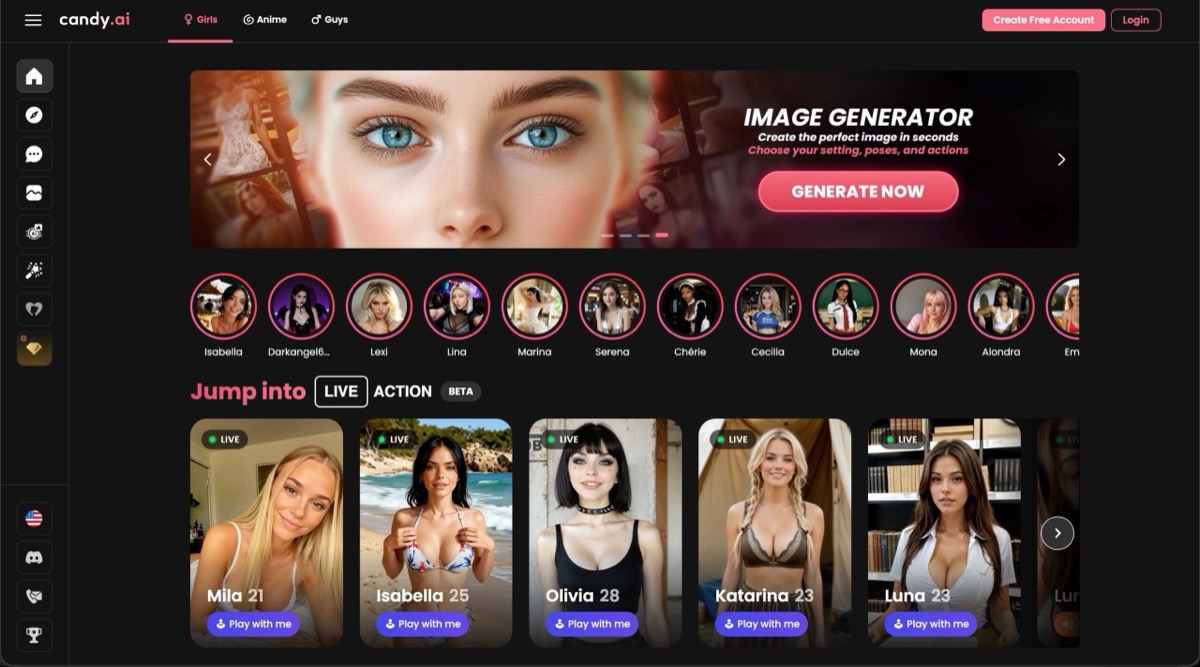
Candy AI

Check studio token cost

Best for: Video scenes with a preset partner

In Candy AI’s Build Your Video, pick a lead and a partner from the available presets. Scene options can include a setting and an action. Check the pairing and token cost before you render.

Video preview
  • Cast a preset partner for your lead
  • Choose location and action for the pair
  • Replay in My Generations to spot drift
Main upside
Check the available cast and setting before you generate the clip.
Main caution
The partner comes from presets. Check the finished clip for changes to either character.

Editor's shortlist

Give Each Character a Place in the Frame

Start with a wide still of two fictional adults, with both faces lit. Give each person a separate description, a side of the frame, and two details you can pick out later, such as a dark jacket and a haircut. Check that those details stay with the right person before you save the frame. Use that still to judge each closer shot or change in angle.

  • Describe each fictional adult separately and give each details you can pick out in the wide shot.
  • Give each character a side of the frame and keep both faces visible in the first reference still.
  • Compare both complexions under similar lighting before you decide whether a skin tone has drifted.
  • Pause before, during, and after an overlap to catch any faces, clothes, or positions that swap.
  • Keep the approved still and change one motion instruction per retry so you can tell what helped.

Animate the approved still with one move and a steady camera. Pause before the pair overlaps, where one face is partly hidden, and again when both faces are visible. Check that their faces, skin tones, and clothes stay with the right person. If any detail swaps sides, simplify the move and try the next render from the same opening frame.

AI Haven Pick

Create Your AI Dream Companion

Create a fictional companion for text, voice and generated media. Account access, paid features and DreamCoin costs vary by activity.

Try OurDream AI

Compare 5 Options

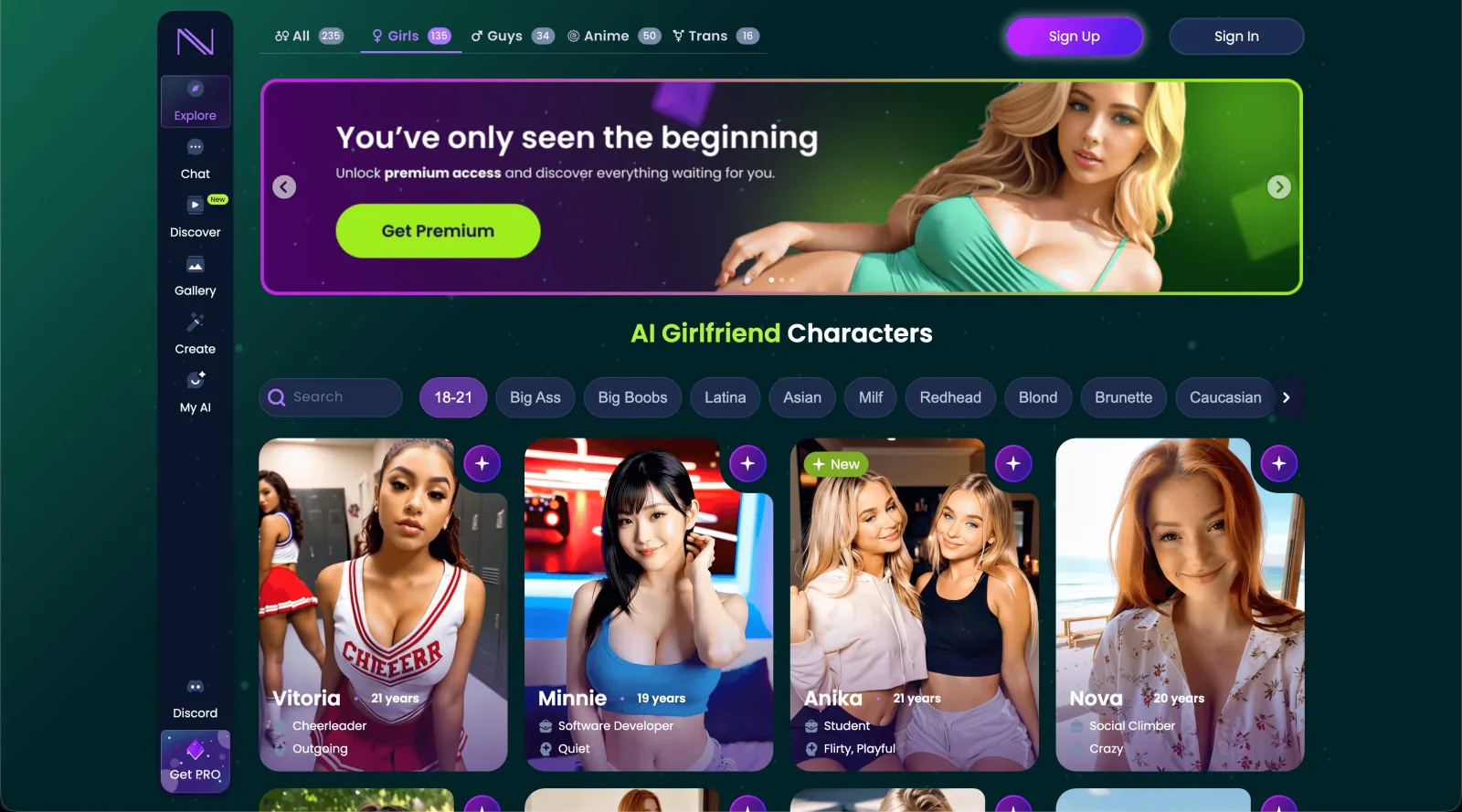
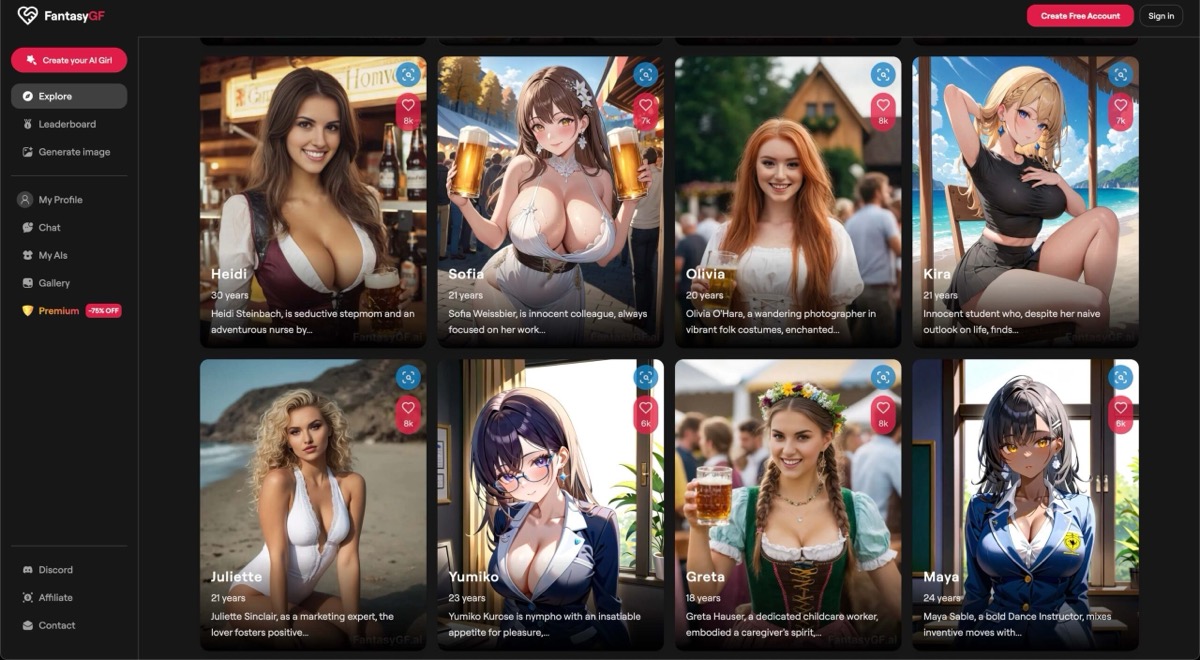
FantasyGF Explore dashboard showing realistic and anime companion cards, creator navigation, gallery, and Premium controls
#1

FantasyGF.AI

Pricing: Ultra plan for two-character media

  • Use the second female character slot in Ultra to set up a paired still or clip.
  • Try a still first so you can check where each woman sits in the shared frame.
  • Confirm the token cost for the model you selected before you run another render.
UNDRESS AI tool preview
#2

UNDRESS AI

Pricing: Sign in to check Duo credits

  • Use one original fictional adult still for each of the two image slots in Duo.
  • Use the optional prompt to tell Duo where each person sits in the shared frame.
  • Sign in to render a still. Check the credit charge before retrying the same shot.
Candy AI screenshot
#3

Candy AI

Pricing: Check the clip cost in the studio

  • Pick a lead and a partner from the cast presets that come with the chosen video.
  • Choose the action and location from the options offered for the scene you picked.
  • Check which pairings are offered and how many tokens the clip costs before you pay.
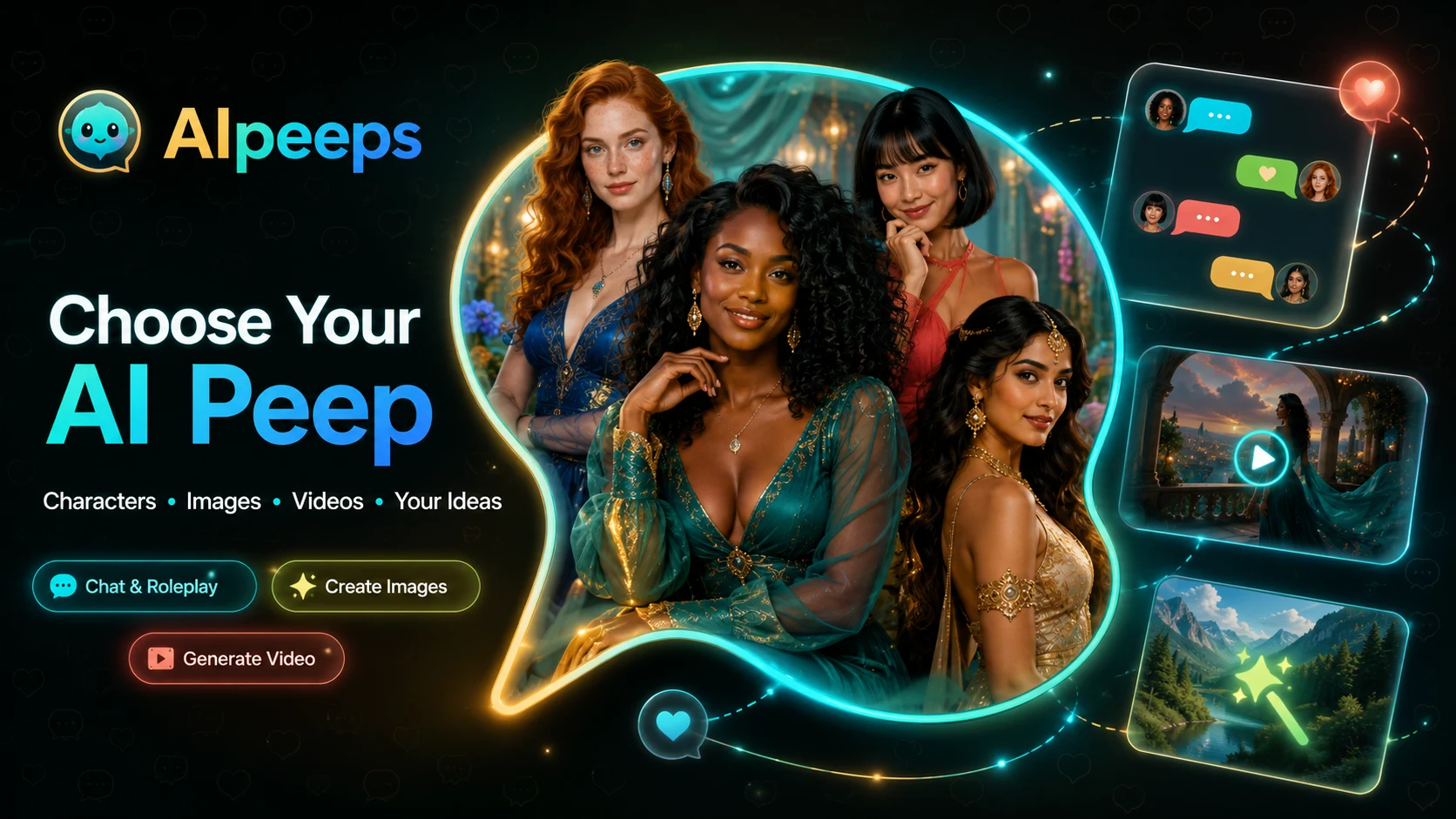
AI Peeps promotional artwork with four fictional companions and chat, image, and video graphics
#4

AI Peeps

Pricing: 10 PeepCoins per still

  • In Photoreal, choose Add a Peep to bring a second character into the same still.
  • Use Guided mode to choose clothes for each Peep before putting them in one still.
  • Photoreal stills cost 10 PeepCoins. Check both looks before spending more on edits.
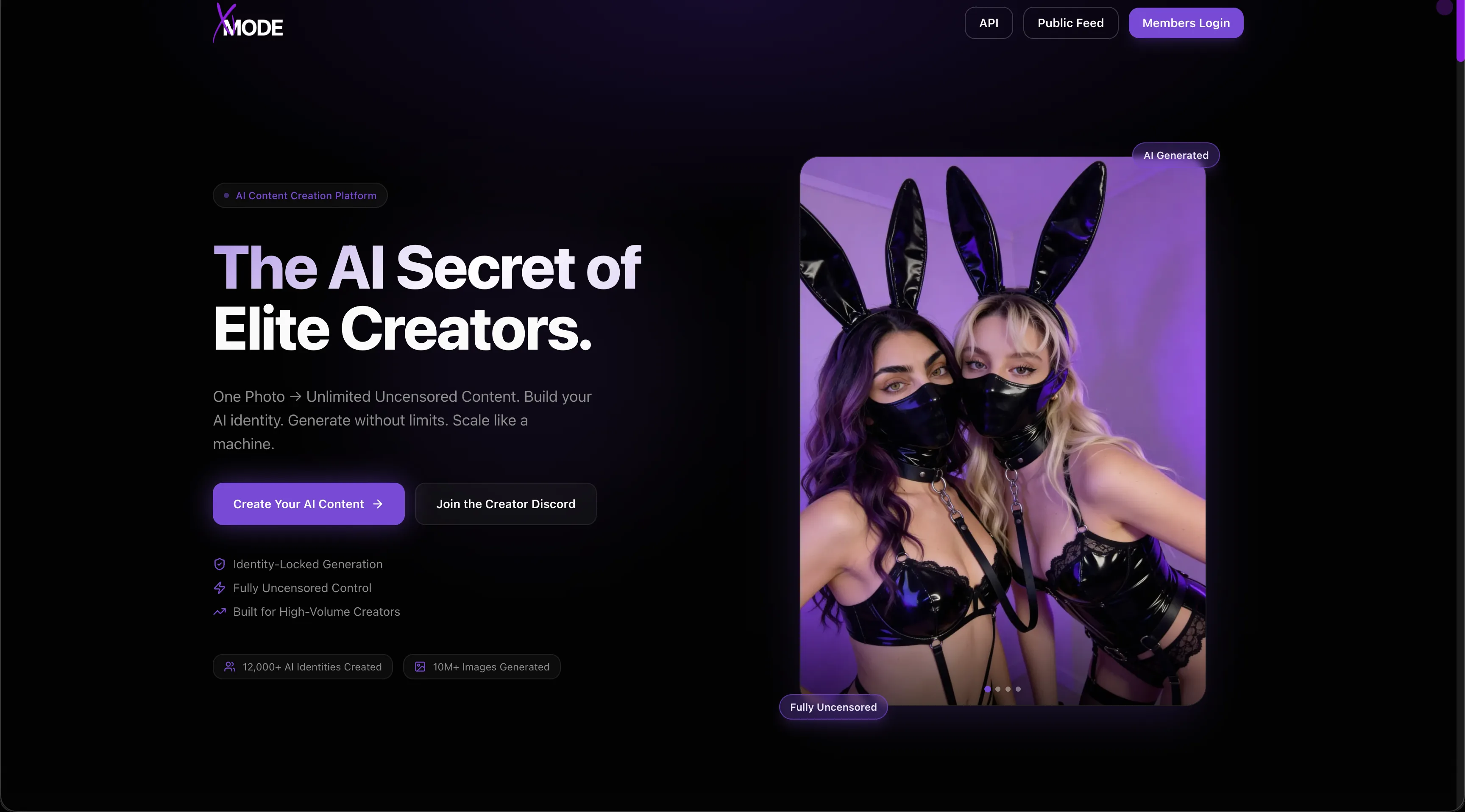
xMode marketing homepage showing the AI Secret of Elite Creators headline, creator imagery, navigation, and sign-up controls
#5

xMode

Pricing: Check Face ID and image credit costs

  • Assign separate Face IDs to two fictional adults in a single Seedream 4.5 still.
  • Give each a position and use reference images you own or have permission to use.
  • Check the credit cost and both faces before committing to a still with a new pose.

All Reviewed Tools

Compare tools for pairing characters, animating a shared still, or creating an individual reference.

What to Know Before Choosing

Check each face, skin tone, and outfit in the shared still and again after the camera moves.

Pick a Workflow That Can Hold Two Identities

Choose a workflow once you know the shot. Separate descriptions or position controls give you a way to assign a face and outfit to each person. If you want to animate the pair, check that the video tool accepts the still you’ve already reviewed.

What you wantWhat to look forWhat to check in the result
Two recognizable faces in one stillSeparate descriptions or positions for each personEach face and outfit match the right person
A closer view of the same pairA reference image or a local editBoth faces and skin tones still read when you crop closer
A short clip with both movingSupport for an initial still and a short durationBoth people keep their features through an overlap
A budget for one usable shotCharges for stills, edits, and videoAdd the still, a short motion test, and another render

Give Each Person a Clear Place in the Frame

Describe one person at a time. Try a short haircut and a navy jacket on the left. Give the other adult a different haircut or a mark that still reads when they overlap. Keep the room and lens instructions separate from the character details where the tool allows it.

Light both faces. Colored light can make a complexion look different, so compare faces and skin tones under similar light. Save a frame that shows both people before trying a tighter crop. Compare reference and edit controls in the AI image generator guide.

Check Who Reappears After an Overlap

Animate the approved still with one move, such as one person turning toward the other. Pause just before, during, and after the overlap. Check who starts on each side, whose face is visible in the middle, and whether the same face and clothes reappear.

If details swap, go back to that still. Hold the camera steady and try a simpler move that keeps both faces visible longer. When comparing NSFW video generators, use the same frame and a similar duration where the tools allow it.

Budget for the Still and the Motion Test

Record what the approved still, any local edit, and a clip at your chosen length cost. Check whether a retry or higher resolution draws from the same balance. Compare what you spend on a usable shot with the price shown for a single render.

Fix a wrong face or garment in the still before paying for motion. If the error only appears once they move, keep the starting frame and change the motion instruction. That gives you one change to judge on the retry.

Frequently Asked Questions

Related Categories

Explore adjacent categories with similar adult AI use cases.